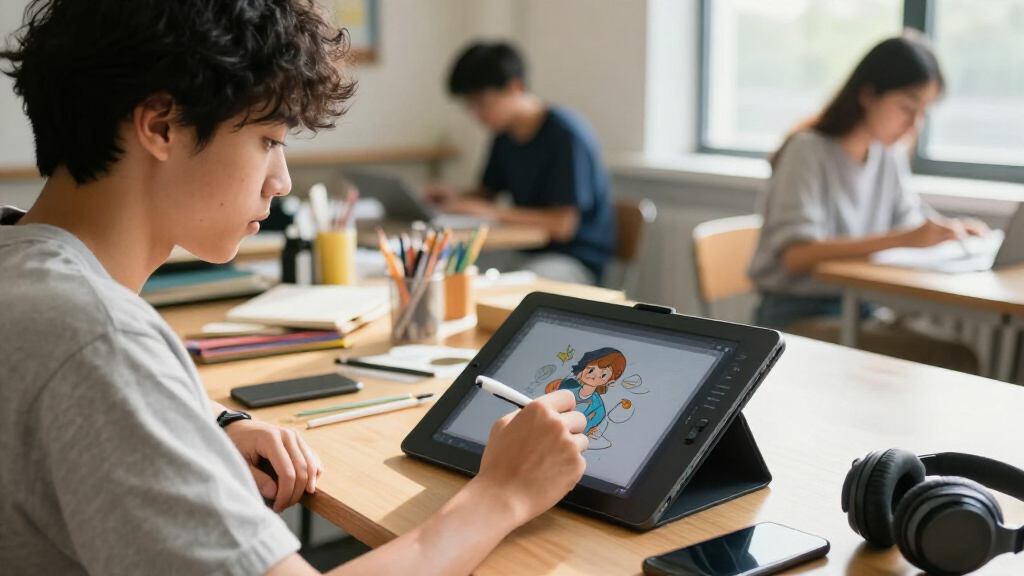
For students choosing a digital drawing tablet, my best overall pick is the HUION Kamvas 13 (Gen 3), which pairs an on-screen drawing surface with a school-friendly size. The Wacom Intuos Small is a simpler, compact option for students who already have a computer, while the Frunsi RubensTab T11 Pro suits learners who want to draw without connecting to a laptop. The main tradeoff is between price-saving screenless tablets, displays that make drawing feel more direct, and standalone models that offer portability but cost more and add another device to maintain. I’ve ranked these options by how well their setup, usability, and features fit student workflows—not by specifications alone. Read on for the full breakdown and guidance on choosing the right type.

Prime made for students and young adults
- Fast, free delivery for dorm and study essentials
- Prime Video and Amazon Music included
- Member-only deals
Key Takeaways
- The Kamvas 13 (Gen 3) leads for students who can use a computer: it provides an on-screen workspace without requiring a standalone tablet’s built-in computing hardware.
- Screenless models remain the practical value choice: the HUION Inspiroy H1060P and GAOMON M10K offer more drawing area and controls than compact entry-level pads, but require hand-eye coordination with a separate display.
- Standalone tablets solve a different problem: the Frunsi RubensTab T11 Pro, T14, T8, and Simbans PicassoTab A10 can work away from a computer, trading connection-free use for a separate device and its upkeep.
- Tablet size affects classroom practicality: small options such as the HUION H640P and GAOMON S620 pack easily, while larger displays offer more room for detailed work but take up more desk and bag space.
- Extra controls matter most when students build a regular workflow: dials and shortcut keys on models such as the XP-Pen Artist 13.3 Pro V2 and HUION Kamvas 13 variants can reduce repeated menu use, but beginners may benefit more from a straightforward setup.
| XP-Pen Artist 13.3 Pro Drawing Tablet with Screen |  | Best for Shortcut-Driven Coursework | Display: 13.3-inch fully laminated FHD | Color gamut: 88% NTSC; Adobe RGB ≥91%; sRGB ≥123% | Viewing angle: 178 degrees | VIEW LATEST PRICE | See Our Full Breakdown |
| HUION Inspiroy H1060P Graphics Drawing Tablet, 10 x 6.25 in |  | Best Value for Shortcut-Heavy Work | Working area: 10 × 6.25 inches | Stylus: Battery-free PW100 | Tilt support: ±60 degrees | VIEW LATEST PRICE | See Our Full Breakdown |
| HUION Inspiroy H640P 6 × 4-Inch Drawing Tablet |  | Best Compact Starter Tablet | Active area: 6 × 4 inches | Pen pressure sensitivity: 8192 levels | Resolution: 5080 LPI | VIEW LATEST PRICE | See Our Full Breakdown |
| HUION Note Digital Notebook with Real-Time and Offline Sync |  | Best for Handwritten Class Notes | Notebook size: A5 | Notebook pages: 50 | Connectivity: Bluetooth 5.0 | VIEW LATEST PRICE | See Our Full Breakdown |
| Wacom One 14 Drawing Tablet with IPS Full HD Laminated Screen & Pen |  | Best Beginner Pen Display | Screen: 14-inch IPS Full HD (1920 × 1080), laminated | Color gamut: 98% sRGB | Pressure sensitivity: 4096 levels | VIEW LATEST PRICE | See Our Full Breakdown |
| Wacom Intuos Small Wired Drawing Tablet with Pen |  | Best for Budget-Conscious Beginners | Model: Intuos Small (CTL4100) | Connection: Wired USB-A | Pen: Battery-free Wacom Pen 4K | VIEW LATEST PRICE | See Our Full Breakdown |
| HUION Kamvas 13 (Gen 3) Pen Display Drawing Tablet |  | Best for Color-Focused Coursework | Display: 13.3-inch full-laminated anti-glare screen | Pen: PenTech 4.0; 16,384 pressure levels; 2 g initial activation force | Color: 99% sRGB/Rec.709, 90% Adobe RGB, stated ΔE<1.5 | VIEW LATEST PRICE | See Our Full Breakdown |
| Frunsi RubensTab T11 Pro Standalone Drawing Tablet |  | Best for Independent Study Sessions | Display: 10.1-inch IPS, 1920 × 1200 | Battery: 5800 mAh; up to 5 hours of use | Charging: USB-C | VIEW LATEST PRICE | See Our Full Breakdown |
| HUION Kamvas 13 (Gen 3) 13.3-Inch Drawing Tablet with Screen, Dual Dial, and Adjustable Stand |  | Best for Shortcut-Heavy Workflows | Display: 13.3-inch fully laminated Canvas Glass 2.0 | Color: 99% sRGB; 16.7 million colors; average ΔE < 1.5 | Pen: PenTech 4.0; 16,384 pressure levels; 2 g initial activation force | VIEW LATEST PRICE | See Our Full Breakdown |
| Frunsi RubensTab T14 Standalone Drawing Tablet, 14.1-Inch FHD Display |  | Best Standalone Pick for a Larger Canvas | Display: 14.1-inch Full HD IPS, 1920 × 1200 | Processor: Octa-core CPU | Battery: 10,000 mAh; up to 5 hours | VIEW LATEST PRICE | See Our Full Breakdown |
| GAOMON S620 Graphics Drawing Tablet, 6.5 × 4 Inches, 8192 Pressure Levels, 4 Customizable Keys |  | Best Compact Computer Tablet | Active area: 6.5 × 4 inches | Pen: Battery-free | Pressure levels: 8192 | VIEW LATEST PRICE | See Our Full Breakdown |
| Simbans PicassoTab A10 10-Inch Standalone Drawing Tablet |  | Best Standalone Pick for Beginner Artists | Display: 10-inch laminated LCD | Native resolution: 2000 × 1200 | Operating system: Android 14 | VIEW LATEST PRICE | See Our Full Breakdown |
| GAOMON M10K Drawing Tablet with Touch Ring and 10 Customizable Keys |  | Best for Shortcut-Heavy Coursework | Active area: 10 × 6.25 inches | Stylus: AP31 battery-free stylus | Pressure sensitivity: 8192 levels | VIEW LATEST PRICE | See Our Full Breakdown |
| Frunsi RubensTab T8 Standalone Drawing Tablet, 8-Inch |  | Best Small Standalone Tablet | Screen size: 8 inches | Native resolution: 1200 × 800 | Operating system: Android 13 | VIEW LATEST PRICE | See Our Full Breakdown |
| XP-Pen Artist 13.3 Pro V2 Drawing Tablet with Screen, 16K Pressure Levels, Red Dial and 8 Keys |  | Best Premium Pen Display | Screen size: 13.3 inches | Resolution: Full HD | Display: IPS, full-laminated with AG film | VIEW LATEST PRICE | See Our Full Breakdown |
| digital drawing tablets for student | Compatibility |
|---|---|
| XP-Pen Artist 13.3 Pro Drawing | — |
| HUION Inspiroy H1060P Graphics | Windows 7 or later, macOS 10.12 or later, Android 6.0 or later, Ubuntu with Xorg |
| HUION Inspiroy H640P 6 × 4-Inc | Mac, Windows, Linux, and Android 6.0 or later; no iPhone or iPad support |
| HUION Note Digital Notebook wi | iOS, Android, and PC |
| Wacom One 14 Drawing Tablet wi | Windows 10 or later, macOS 13 or later, ChromeOS |
| Wacom Intuos Small Wired Drawi | Mac, Windows, Chromebook, and select Android devices |
| HUION Kamvas 13 | Windows 10 or later, macOS 10.12 or later, compatible Android devices, and Ubuntu 20.04 LTS |
| Frunsi RubensTab T11 Pro Stand | — |
| HUION Kamvas 13 | Windows 10 or later, macOS 10.12 or later, compatible Android devices, and Ubuntu 20.04 LTS |
| Frunsi RubensTab T14 Standalon | — |
| GAOMON S620 Graphics Drawing T | Windows 7 or later; macOS 10.12 or later |
| Simbans PicassoTab A10 10-Inch | — |
| GAOMON M10K Drawing Tablet wit | Windows 7 or later, macOS 10.12 or later, and certain Android devices running Android 11–14 |
| Frunsi RubensTab T8 Standalone | — |
| XP-Pen Artist 13.3 Pro V2 Draw | Windows 7 or later, macOS 10.13 or later, Chrome OS 88 or later, compatible Android devices, and Linux with driver support |
More Details on Our Top Picks
XP-Pen Artist 13.3 Pro Drawing Tablet with Screen
The Artist 13.3 Pro gives students a direct-on-screen drawing setup without the cost or bulk of a larger display. Its fully laminated 13.3-inch FHD screen reduces the visible gap between pen tip and cursor, which can make diagramming, illustration, and handwriting feel more natural. The red dial and eight customizable display keys also help students assign frequent actions—such as undo or brush size—to physical controls. Unlike the HUION Inspiroy H1060P, this is a pen display, so students draw on the image rather than looking up at a separate monitor; the tradeoff is that it needs a connected computer or laptop. The screen is compact for detailed projects, and its cable setup may be less convenient than a standalone tablet. I’d choose it for a desk-based student who values screen drawing and adjustable shortcuts.
Pros:- Fully laminated FHD display helps reduce parallax while drawing.
- Red dial and eight customizable display keys support quick access to common tools.
- Battery-free stylus offers tilt support up to 60 degrees.
- Includes a foldable stand, pen holder, and replacement nibs.
Cons:- Must connect to a computer or laptop to work.
- The 13.3-inch screen may feel cramped for large compositions or detailed projects.
- The included 3-in-1 cable and power adapter make setup less simple than a basic pen tablet.
Best for: Students with a compatible computer who want to draw directly on screen and customize controls for illustration or design coursework.
Not ideal for: Students who need a standalone tablet, a large drawing surface, or a compact setup with minimal cables.
- Display:13.3-inch fully laminated FHD
- Color gamut:88% NTSC; Adobe RGB ≥91%; sRGB ≥123%
- Viewing angle:178 degrees
- Tilt support:Up to 60 degrees
- Shortcut keys:8 customizable display keys; 2 stylus keys
- Stylus:Battery-free; 220 RPS
- Connectivity:USB-C; 3-in-1 cable included
- Compatible operating systems:Windows 7 or later, macOS X 10.10 or later, Chrome OS 88 or later, Linux
Our verdict“Choose the Artist 13.3 Pro if screen-based drawing and customizable shortcuts matter more than portability or standalone use.”
HUION Inspiroy H1060P Graphics Drawing Tablet, 10 x 6.25 in
The Inspiroy H1060P is a strong fit for students who want a broad working area and lots of customizable controls without needing a screen built into the tablet. Its 10 × 6.25-inch surface gives more room for hand movement than the compact HUION Inspiroy H640P, while 12 press keys and 16 soft keys let students tailor shortcuts to drawing, note-taking, or editing apps. The battery-free pen supports tilt and 8192 pressure levels, giving beginners room to practice varied line weight. The main compromise is the screenless workflow: students must watch their computer or compatible device while drawing. Compatibility also has caveats—Ubuntu requires Xorg, and Mac connections need a USB adapter. I’d pick it over a pen display for students who prioritize workspace and shortcuts over drawing directly on screen.
Pros:- 10 × 6.25-inch working area provides more drawing room than the H640P.
- 12 programmable press keys and 16 programmable soft keys allow extensive shortcut customization.
- Battery-free stylus supports tilt and 8192 pressure levels.
- Symmetrical design accommodates left- and right-handed users.
Cons:- No built-in screen, so drawing requires hand-eye coordination with a separate display.
- Ubuntu support requires the Xorg display server and does not include Wayland support.
- A USB adapter is required for connection to a Mac computer.
Best for: Students using a Windows or Mac computer who want a generous screenless work area and many programmable controls for creative assignments.
Not ideal for: Students who want to draw directly on a display, use an iPhone or iPad, or need Ubuntu support under Wayland.
- Working area:10 × 6.25 inches
- Stylus:Battery-free PW100
- Tilt support:±60 degrees
- Pressure levels:8192
- Shortcut keys:12 programmable press keys and 16 programmable soft keys
- Compatibility:Windows 7 or later, macOS 10.12 or later, Android 6.0 or later, Ubuntu with Xorg
- Warranty:1 year manufacturer
Our verdict“Pick the H1060P if you want a roomy, customizable pen tablet for computer-based coursework and can work without an integrated screen.”
HUION Inspiroy H640P 6 × 4-Inch Drawing Tablet
For students who need a small tool for sketch practice, note-taking, or basic image editing, the HUION Inspiroy H640P keeps the setup light and straightforward. Its 6 × 4-inch active area and 0.61-pound weight make it easier to carry between classes than the larger HUION Inspiroy H1060P, though that smaller surface leaves less room for broad strokes and detailed compositions. The battery-free pen has 8192 pressure levels, and six customizable keys can keep common actions close at hand. It works across Mac, Windows, Linux, and compatible Android devices, but not iPhone or iPad. This is a sensible first pen tablet for students who want to learn digital drawing without dedicating much bag space; students doing extensive illustration may outgrow its limited workspace.
Pros:- Compact 0.61-pound design is easy to carry between classes.
- Battery-free stylus provides 8192 pressure levels.
- Six customizable keys can speed up common actions.
- Supports Mac, Windows, Linux, and Android 6.0 or later.
Cons:- The 6 × 4-inch active area can restrict hand movement and detailed work.
- Does not support iPhone or iPad.
- Like the H1060P, it has no screen, so students draw while watching a separate display.
Best for: Students who want a lightweight, entry-level pen tablet for sketching, class notes, and basic editing on a laptop or compatible Android device.
Not ideal for: Students creating large, detailed illustrations or those who need iPhone or iPad compatibility.
- Active area:6 × 4 inches
- Pen pressure sensitivity:8192 levels
- Resolution:5080 LPI
- Report rate:233 PPS
- Shortcut keys:6 customizable keys
- Stylus:Battery-free PW100
- Dimensions and weight:0.3 inches thick; 0.61 lbs
- Compatibility:Mac, Windows, Linux, and Android 6.0 or later; no iPhone or iPad support
Our verdict“Choose the H640P for portable practice and everyday student tasks, but move up to the H1060P if you need more drawing room.”
HUION Note Digital Notebook with Real-Time and Offline Sync
The HUION Note serves a different student need from the pen displays and screenless tablets here: it captures handwriting and sketches made on A5 paper, then syncs them to the companion app. That paper-first approach may suit students who prefer writing on a physical page but want searchable, shareable digital work; audio-linked notes can also help connect lecture recordings to written material. Compared with the HUION Inspiroy H1060P, it is less focused on long sessions of computer-based drawing and more useful as a notebook that can also act as a drawing tablet. The app is required for syncing and managing notes, while drawing mode means swapping out the paper pages for the included panel and connecting to a PC. It makes the most sense for students whose priority is digitized class notes, not a dedicated illustration surface.
Pros:- Captures handwriting and drawings from an A5 paper notebook for digital syncing.
- Audio can be linked with notes, helping students revisit lecture material.
- App supports editing, organizing, and sharing notes as images, PDFs, or MP4 files.
- Can switch to drawing-tablet use with the included panel and a PC connection.
Cons:- The HUION Note app is required for syncing and note management.
- Drawing-tablet mode requires replacing notebook pages with the panel.
- Drawing-tablet use requires a PC connection, so it is not a standalone digital art setup.
Best for: Students who take handwritten lecture notes or sketch on paper and want to sync, organize, and share those pages through a mobile app.
Not ideal for: Students seeking a dedicated digital drawing surface for regular computer-based illustration or who do not want to depend on a mobile app.
- Notebook size:A5
- Notebook pages:50
- Connectivity:Bluetooth 5.0
- Battery life:Up to 18 hours of use
- Standby time:About 30 days
- Compatibility:iOS, Android, and PC
- Warranty:1 year
- Included accessories:USB-C cable, magnetic pen sleeve, 3 ballpoint refills, 3 plastic pen nibs, and pen nib clip
Our verdict“Choose the HUION Note if paper-based lecture notes are your main need and digital drawing is a useful secondary feature.”
Wacom One 14 Drawing Tablet with IPS Full HD Laminated Screen & Pen
The Wacom One 14 is the clearest choice here for students starting with a screen-based drawing workflow who want a comparatively simple connection and a larger canvas than the XP-Pen Artist 13.3 Pro. Its 14-inch laminated FHD display gives more room for assignments, while 98% sRGB coverage and an anti-glare surface support comfortable viewing in varied study spaces. The battery-free pen includes tilt support, and the included software trials give newcomers a way to explore creative tools. The tradeoff is a pen rated at 4096 pressure levels, fewer than the 8192 levels listed for the HUION pen tablets; that may matter more to students focused on fine control than to beginners learning basic strokes. USB-C requires DisplayPort Alt Mode, and non-USB-C displays need a separate HDMI adapter. This suits a student who wants a straightforward display-based start.
Pros:- 14-inch laminated FHD screen provides more workspace than the Artist 13.3 Pro.
- 98% sRGB coverage and an anti-glare surface support color-focused coursework and varied study settings.
- Battery-free pen supports tilt and does not need charging.
- Starter creative software trials can help beginners get started.
Cons:- Pen offers 4096 pressure levels, fewer than the 8192 listed for the HUION Inspiroy models.
- USB-C connection requires DisplayPort Alt Mode; an HDMI adapter is sold separately for non-USB-C displays.
- Requires a compatible computer rather than operating as a standalone tablet.
Best for: Beginning digital artists with a compatible Windows, Mac, or ChromeOS device who want a larger on-screen workspace and a simple USB-C setup.
Not ideal for: Students without USB-C DisplayPort Alt Mode who want to avoid separate adapters, or experienced artists seeking higher listed pen pressure sensitivity.
- Screen:14-inch IPS Full HD (1920 × 1080), laminated
- Color gamut:98% sRGB
- Pressure sensitivity:4096 levels
- Pen:Battery-free with 60-degree tilt support
- Connectivity:USB-C with DisplayPort Alt Mode; HDMI adapter sold separately
- Compatibility:Windows 10 or later, macOS 13 or later, ChromeOS
- Included software:Starter creative software trials
Our verdict“Choose the Wacom One 14 if you are starting with a pen display and value a larger, anti-glare screen over higher listed pressure sensitivity.”
Wacom Intuos Small Wired Drawing Tablet with Pen
For students learning digital art on a computer they already own, the Wacom Intuos Small keeps the setup simple: connect by USB-A, open a compatible app, and draw with its battery-free pen. The small, screenless surface is less immersive than the HUION Kamvas 13 (Gen 3), but it also makes this tablet easy to carry between classes and avoids adding another display to a crowded desk. Four ExpressKeys can put frequent commands within reach, while included software access and tutorials give new users a starting point for practice. The tradeoff is a learning curve: your hand draws on the tablet while the cursor appears on your monitor. Its wired connection and limited drawing area make it less suitable for students who want flexible placement or broad strokes.
Pros:- Battery-free pen avoids charging interruptions.
- Four ExpressKeys provide quick access to common commands.
- Works with Mac, Windows, Chromebook, and select Android devices.
- Includes access to creative software and online tutorials.
Cons:- Small active area can feel restrictive for detailed artwork or broad gestures.
- Wired USB-A connection limits placement and requires a compatible port.
- Screenless drawing takes practice because the pen and display are separate.
Best for: Students starting digital illustration on a Mac, Windows PC, Chromebook, or compatible Android device who want a compact tablet and guided learning resources.
Not ideal for: Students who want to draw directly on a screen, need a large working area, or need to position their tablet away from a USB-A port.
- Model:Intuos Small (CTL4100)
- Connection:Wired USB-A
- Pen:Battery-free Wacom Pen 4K
- Shortcut keys:4 ExpressKeys
- Compatibility:Mac, Windows, Chromebook, and select Android devices
- Included accessories:USB-A cable with L-shaped connector, 3 extra standard nibs, nib removal tool, quick start guide, and regulation sheet
- Warranty:1 year manufacturer warranty
Our verdict“Choose the Intuos Small if you want an approachable, portable drawing surface for a computer-based student setup rather than a screen tablet.”
HUION Kamvas 13 (Gen 3) Pen Display Drawing Tablet
Students whose assignments depend on seeing color and linework directly beneath the pen may prefer the HUION Kamvas 13 (Gen 3) to the screenless Wacom Intuos Small. Its 13.3-inch laminated, anti-glare display reduces the visual gap between nib and cursor, while the stated color accuracy and wide gamut suit illustration, design, and photo-editing work. The pen’s low activation force and 16,384 pressure levels support delicate marks, and two dials plus five keys give students shortcuts for tools or canvas control. This is a pen display, not a standalone tablet: it needs a compatible computer or supported device, so it is less convenient for drawing between classes than the Frunsi RubensTab T11 Pro. Android use also depends on specific USB and DisplayPort support.
Pros:- 13.3-inch laminated anti-glare display puts artwork directly under the pen.
- Factory-stated color accuracy and broad color coverage suit design coursework.
- Pen supports 16,384 pressure levels and a 2 g initial activation force.
- Two dial controllers and five customizable keys provide hands-on shortcuts.
Cons:- Requires a connected computer, laptop, or supported Android device.
- Android compatibility depends on USB 3.1 Gen 1 and DP 1.2 support.
- Less portable as a complete drawing setup than standalone tablets such as the RubensTab T11 Pro.
Best for: Art and design students who work on color-sensitive assignments and already have a compatible computer or supported Android device.
Not ideal for: Students seeking a self-contained tablet for independent work, or those with an Android device that lacks the required video-output support.
- Display:13.3-inch full-laminated anti-glare screen
- Pen:PenTech 4.0; 16,384 pressure levels; 2 g initial activation force
- Color:99% sRGB/Rec.709, 90% Adobe RGB, stated ΔE<1.5
- Controls:2 dial controllers and 5 press keys
- Thickness and weight:11.7 mm; 865 g
- Compatibility:Windows 10 or later, macOS 10.12 or later, compatible Android devices, and Ubuntu 20.04 LTS
- Included accessories:3-in-1 cable, USB extension cable, cleaning cloth, digital pen, pen holder, 10 pen nibs, glove, and quick start guide
- Warranty:1 year
Our verdict“Pick this Kamvas if screen-based drawing and color-focused coursework matter more than standalone use.”
Frunsi RubensTab T11 Pro Standalone Drawing Tablet
The RubensTab T11 Pro is the practical pick for students who want to sketch without bringing a laptop: its standalone operation, pre-installed drawing apps, and included stand case make it a ready-to-use study companion. That differs from the HUION Kamvas 13 (Gen 3), which offers a larger drawing display but must connect to another device. The T11 Pro’s 10.1-inch Full HD screen supports drawing, notes, and casual use, while the battery-free pressure-sensitive pen sidesteps pen charging. Its portability comes with limits, though: the screen gives less room for detailed projects than either Kamvas 13, and the listed battery life is up to five hours. Students working through a full day of classes may need to plan around charging rather than expect continuous use.
Pros:- Standalone operation means no computer is required to draw.
- 10.1-inch Full HD IPS display supports drawing and note-taking.
- Battery-free pressure-sensitive pen avoids separate pen charging.
- Includes drawing apps, an adjustable stand case, and multi-touch.
Cons:- Listed battery life is up to 5 hours per charge.
- 10.1-inch screen offers less workspace than the 13.3-inch Kamvas models.
- A standalone setup may offer fewer workflow controls than pen displays with dials and programmable keys.
Best for: Students who want a self-contained tablet for sketching, handwritten notes, and short drawing sessions while commuting or moving between classes.
Not ideal for: Students who need a larger canvas for detailed coursework, long unplugged sessions, or the expanded controls and color specifications of a connected pen display.
- Display:10.1-inch IPS, 1920 × 1200
- Battery:5800 mAh; up to 5 hours of use
- Charging:USB-C
- Pen:Battery-free pressure-sensitive pen
- Connectivity:Wi-Fi
- Features:Standalone operation, pre-installed drawing apps, and multi-touch
- Included accessories:Digital pen, stylus, gloves, cleaning cloth, and adjustable stand case
- Warranty:12 months
Our verdict“Choose the T11 Pro for portable, computer-free drawing and notes, provided its screen size and listed battery life fit your study routine.”
HUION Kamvas 13 (Gen 3) 13.3-Inch Drawing Tablet with Screen, Dual Dial, and Adjustable Stand
This Kamvas 13 variant is a strong match for students who want a screen-based drawing workflow with tactile controls and a stand included. Its fully laminated Canvas Glass 2.0, stated 99% sRGB coverage, and PenTech 4.0 pen place it close to the other HUION Kamvas 13 (Gen 3) in this list; the distinguishing draw here is the included adjustable stand, which can make longer desk sessions easier to arrange. Dual dials and five programmable keys also suit students who often change brush size, zoom, or other commands. Like the other Kamvas, it must connect to a computer or compatible device, so the Frunsi RubensTab T14 is the more self-contained choice. Android support has a hardware requirement, and a computer-based setup adds cables to a student’s kit.
Pros:- Fully laminated Canvas Glass 2.0 is designed to reduce glare and improve pen-to-cursor alignment.
- PenTech 4.0 offers 16,384 pressure levels and a 2 g initial activation force.
- Dual dials and five programmable keys support frequent tool and canvas adjustments.
- Adjustable stand is included for desk-based drawing sessions.
Cons:- Requires a connected computer, laptop, or compatible device to operate.
- Android use requires USB 3.1 Gen 1 and DP 1.2 support.
- A connected pen-display setup is less self-contained than the Frunsi RubensTab T14.
Best for: Digital art students who use shortcut-heavy workflows at a desk and want a pen display with its adjustable stand included.
Not ideal for: Students who need standalone drawing, prefer a lightweight all-in-one device, or cannot confirm their Android device supports the required video connection.
- Display:13.3-inch fully laminated Canvas Glass 2.0
- Color:99% sRGB; 16.7 million colors; average ΔE < 1.5
- Pen:PenTech 4.0; 16,384 pressure levels; 2 g initial activation force
- Controls:5 programmable shortcut keys and dual dial buttons
- Connectivity:3-in-1 cable or full-featured USB-C
- Compatibility:Windows 10 or later, macOS 10.12 or later, compatible Android devices, and Ubuntu 20.04 LTS
- Included accessories:PW600L pen, ST300 adjustable stand, 3-in-1 cable, USB extension cable, pen holder, 10 pen nibs, cleaning cloth, and glove
- Standalone operation:Requires connection to a computer, laptop, or compatible device
- Warranty:1 year
Our verdict“Choose this Kamvas bundle if you want a connected 13.3-inch pen display with built-in workflow controls and an included stand.”
Frunsi RubensTab T14 Standalone Drawing Tablet, 14.1-Inch FHD Display
Students who want to draw without a computer but find a compact tablet confining can step up to the RubensTab T14. Its 14.1-inch Full HD IPS screen gives more room for sketches and study notes than the 10.1-inch RubensTab T11 Pro, while the standalone design avoids the cables and host-device dependency of either HUION Kamvas 13. Pre-installed drawing apps and tutorials offer a starting point, and the battery-free pen and multi-touch support cover common illustration and navigation tasks. The tradeoff is that the larger screen does not change the stated up-to-five-hour battery life; students planning long days away from an outlet should account for charging. It also suits students who value independence over the dials and programmable shortcut keys found on the HUION pen displays.
Pros:- Standalone operation supports drawing without a separate computer.
- 14.1-inch Full HD IPS display offers more workspace than the T11 Pro.
- Battery-free pressure-sensitive pen and multi-touch support drawing and navigation.
- Pre-installed drawing apps, tutorials, and adjustable stand case support a ready-to-use study setup.
Cons:- Battery life is listed as up to 5 hours per charge.
- Larger display is less compact to carry than the 10.1-inch RubensTab T11 Pro.
- Does not provide the dials and programmable keys available on the HUION Kamvas 13 models.
Best for: Students who want a computer-free drawing and note-taking tablet with more screen area than a compact standalone model.
Not ideal for: Students who need extended unplugged sessions, a dedicated pen-display connection to a computer, or tactile dials and programmable shortcuts for studio work.
- Display:14.1-inch Full HD IPS, 1920 × 1200
- Processor:Octa-core CPU
- Battery:10,000 mAh; up to 5 hours
- Charging:USB-C
- Pen:Battery-free pressure-sensitive pen
- Connectivity:Wi-Fi
- Features:Standalone operation, multi-touch, pre-installed drawing apps, and tutorials
- Included accessory:Adjustable stand case
- Warranty:1 year
Our verdict“Pick the T14 if standalone use and a roomier screen matter more than compactness, long battery life, or computer-connected controls.”
GAOMON S620 Graphics Drawing Tablet, 6.5 × 4 Inches, 8192 Pressure Levels, 4 Customizable Keys
For students who draw on a laptop and need a tablet that fits easily into a backpack, I’d put the GAOMON S620 ahead of larger computer-connected options. Its 6.5 × 4-inch active area is suited to sketches, handwritten notes, and simple edits, while the battery-free pen avoids another device to charge. Four programmable keys offer handy shortcuts, though there are fewer controls than on the GAOMON M10K, which adds a larger surface, more keys, and a touch ring.
The tradeoff is working without a screen: students must watch the computer display while drawing. Its compact surface can also feel cramped for detailed illustration, and it does not work with iPad or iPhone. I’d choose it for portability and basic coursework, not as a full-size studio surface.
Pros:- Compact 6.5 × 4-inch active area is easy to pack for classes.
- Battery-free pen requires no charging.
- Four customizable keys provide quick access to common functions.
- Supports left- and right-handed use.
Cons:- Small active area can constrain detailed drawing and broad strokes.
- Requires a compatible Windows or macOS computer and drawing without a built-in display.
- Not compatible with iPad or iPhone.
Best for: Students who carry a Windows laptop or Mac and want a lightweight tablet for notes, beginner art, and small sketches.
Not ideal for: Students who want to draw directly on a screen, need a broad workspace for detailed projects, or plan to use an iPad or iPhone.
- Active area:6.5 × 4 inches
- Pen:Battery-free
- Pressure levels:8192
- Express keys:4 customizable
- Report rate:266 PPS
- Resolution:5080 LPI
- Compatibility:Windows 7 or later; macOS 10.12 or later
- Handedness:Left- and right-handed support
Our verdict“Choose the S620 for portable, computer-based coursework and basic drawing, but pick the GAOMON M10K if you need more workspace and controls.”
Simbans PicassoTab A10 10-Inch Standalone Drawing Tablet
The Simbans PicassoTab A10 suits students who want to sketch without setting up a laptop: drawing and learning apps run on the tablet itself. Its 10-inch laminated display puts the cursor close to the pen tip and helps reduce glare, making it a more direct drawing experience than the screenless GAOMON S620. The included tutorials, creative apps, case, and drawing glove also give beginners useful starting materials in one package.
Compared with the smaller Frunsi RubensTab T8, the A10 offers a larger, higher-resolution screen and more RAM, but it is heavier at 1.5 kg. Its 4096 pressure levels are below the XP-Pen Artist 13.3 Pro V2’s 16,384, and the XP-Pen is aimed at computer-connected work rather than standalone use. I’d favor the A10 for app-based learning, while keeping its weight and unknown software update support in mind.
Pros:- Runs drawing and learning apps without a computer.
- Laminated 10-inch display reduces glare and the gap between pen tip and image.
- Beginner tutorials and creative apps are included.
- Expandable storage supports up to 1TB.
Cons:- At 1.5 kg, it is heavier to carry than compact standalone options such as the RubensTab T8.
- Software update support date is unknown.
- 4096 pressure levels offer less pen sensitivity than the XP-Pen Artist 13.3 Pro V2.
Best for: Students starting digital illustration who want a self-contained Android tablet, guided tutorials, and room for drawing apps and school files.
Not ideal for: Students who need a lightweight everyday carry, depend on a known long-term update schedule, or want a larger professional-style pen display.
- Display:10-inch laminated LCD
- Native resolution:2000 × 1200
- Operating system:Android 14
- Processor:Octa-core
- Memory:6GB RAM
- Storage:64GB, expandable up to 1TB
- Pen pressure sensitivity:4096 levels
- Weight:1.5 kg
Our verdict“Pick the PicassoTab A10 if you want a guided, standalone starting point and can accept its heavier build and uncertain update support.”
GAOMON M10K Drawing Tablet with Touch Ring and 10 Customizable Keys
Students who already work at a computer and want room for longer strokes get a stronger fit from the GAOMON M10K than from the smaller GAOMON S620. Its 10 × 6.25-inch textured area gives sketches and digital painting more breathing room, while 10 customizable keys and a programmable touch ring can put zoom, brush size, and scrolling close at hand. The battery-free stylus means there is no charging routine to manage.
This is a screenless tablet, so it relies on a connected computer or a supported Android device; that makes it less self-contained than the Simbans PicassoTab A10. The extra controls can help with repeated editing tasks, but students who mainly take notes or make occasional sketches may not need them. Android support is also limited to certain devices and versions, and setup requires a USB connection and driver installation.
Pros:- 10 × 6.25-inch textured active area offers more room than the GAOMON S620.
- Ten customizable keys and a programmable touch ring speed up common canvas adjustments.
- Battery-free stylus has 8192 pressure levels.
- Includes a pen case, nib clip, and eight replacement nibs.
Cons:- Requires USB connection and driver installation rather than operating independently.
- No built-in display, so students draw while looking at a separate screen.
- Android support is limited to certain devices running Android 11–14.
Best for: Students learning illustration or design on a Windows or Mac computer who want a generous drawing surface and programmable controls for repeated tasks.
Not ideal for: Students who want a standalone tablet, prefer drawing directly on a display, or need dependable compatibility with any Android device.
- Active area:10 × 6.25 inches
- Stylus:AP31 battery-free stylus
- Pressure sensitivity:8192 levels
- Shortcut keys:10 customizable press keys
- Touch ring:Programmable for canvas zoom, brush adjustment, and page scrolling
- Connectivity:USB
- Compatibility:Windows 7 or later, macOS 10.12 or later, and certain Android devices running Android 11–14
- Included replacement nibs:8
Our verdict“Choose the M10K for computer-based art classes where workspace and shortcuts matter; choose the PicassoTab A10 for drawing without a computer.”
Frunsi RubensTab T8 Standalone Drawing Tablet, 8-Inch
The Frunsi RubensTab T8 is the most compact standalone choice in this group, with drawing apps and tutorials included and no computer required. Its 8-inch screen is easier to carry than the 10-inch Simbans PicassoTab A10, making the T8 appealing for quick sketches between classes or drawing while traveling. A detachable keyboard adds some flexibility for school tasks, and storage can expand to 256GB.
That portability comes with a smaller canvas and a 1200 × 800 display, which gives detailed artwork less room and clarity than the A10’s 2000 × 1200 screen. Its 2048 pressure levels are also below the A10’s 4096, so students seeking finer pen response should look at the larger Simbans model. The listed battery life of up to 20 hours is useful for planning, though performance will depend on use. I’d choose this for compact, casual drawing rather than larger assignments.
Pros:- Runs drawing apps without a connected computer.
- Compact 8-inch format is smaller than the Simbans PicassoTab A10.
- Includes a detachable keyboard, stylus, screen protector, and cleaning cloth.
- Storage expands from 64GB to 256GB.
Cons:- The 8-inch screen can feel cramped for detailed artwork.
- 1200 × 800 resolution is lower than the PicassoTab A10’s 2000 × 1200 display.
- 2048 pressure levels are fewer than the A10’s 4096.
Best for: Students who want a self-contained drawing tablet for casual sketching, tutorials, and light school tasks in a more compact size.
Not ideal for: Students working on detailed illustrations, who want a higher-resolution display, or who need more pen pressure sensitivity for nuanced strokes.
- Screen size:8 inches
- Native resolution:1200 × 800
- Operating system:Android 13
- Processor:MTK quad-core
- Memory:4GB RAM
- Storage:64GB, expandable to 256GB
- Pressure sensitivity:2048 levels
- Drawing battery life:Up to 20 hours
Our verdict“Pick the RubensTab T8 for portable, casual standalone drawing, but choose the PicassoTab A10 for more screen space and pen sensitivity.”
XP-Pen Artist 13.3 Pro V2 Drawing Tablet with Screen, 16K Pressure Levels, Red Dial and 8 Keys
For students ready to spend more time on illustration projects, the XP-Pen Artist 13.3 Pro V2 brings drawing onto a 13.3-inch Full HD screen rather than asking students to look away at a monitor. Its laminated anti-glare display reduces the visible gap beneath the pen, while 16,384 pressure levels, a red dial, and eight shortcut keys give fine control over strokes and routine edits. Compared with the screenless GAOMON M10K, it offers a direct on-screen workflow; compared with the standalone PicassoTab A10, it has a larger, more color-capable display but depends on another device.
That dependency is the main student tradeoff: the Artist 13.3 Pro V2 is not standalone and needs a computer or compatible Android device. Its adjustable stand supports a more comfortable drawing angle, but students who need an all-in-one device for app-based lessons should choose the PicassoTab A10 instead. Color temperature adjustment is available only on Windows.
Pros:- 13.3-inch Full HD laminated anti-glare display supports direct-on-screen drawing.
- Battery-free stylus offers 16,384 pressure levels.
- Red dial and eight customizable keys provide quick access to drawing controls.
- Adjustable stand supports drawing angles up to 90 degrees.
Cons:- Requires a connected computer or compatible Android device; it is not standalone.
- Color temperature adjustment is available only on Windows.
- Less suited to students who need one portable device for drawing apps and other coursework.
Best for: Students taking illustration or design courses who have a compatible computer or Android device and want a large, direct-on-screen drawing workflow.
Not ideal for: Students who need an all-in-one tablet for class, want to draw without connecting another device, or rely on color temperature adjustment outside Windows.
- Screen size:13.3 inches
- Resolution:Full HD
- Display:IPS, full-laminated with AG film
- Stylus:Battery-free X3 Pro smart chip stylus
- Pressure levels:16,384
- Color gamut:125% sRGB, 107% Adobe RGB, 95% Display P3
- Controls:Red dial and 8 customizable keys
- Compatibility:Windows 7 or later, macOS 10.13 or later, Chrome OS 88 or later, compatible Android devices, and Linux with driver support
Our verdict“Choose the Artist 13.3 Pro V2 for a connected, on-screen drawing setup with advanced pen controls, and choose the PicassoTab A10 if you need standalone use.”
How We Picked
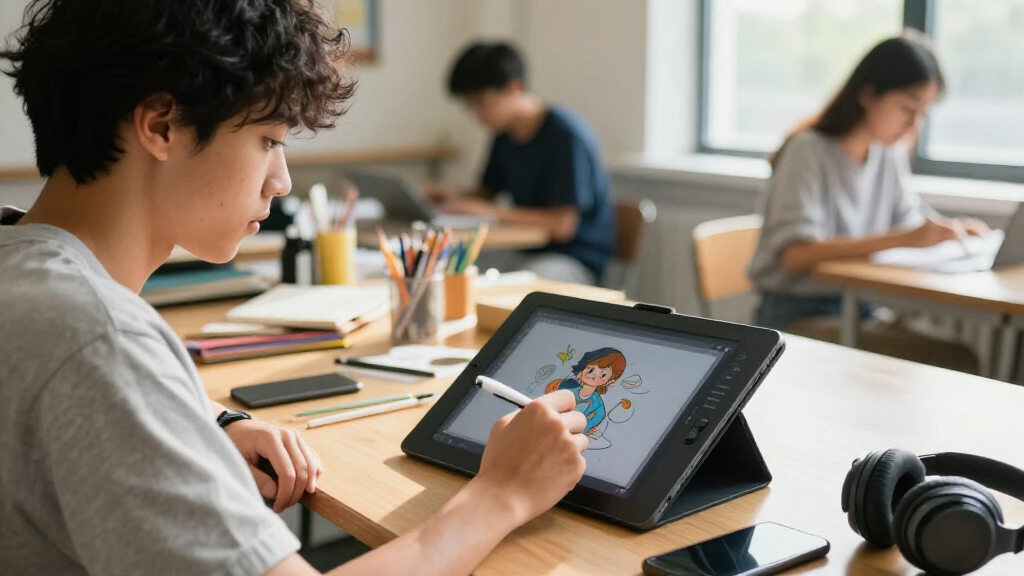
I compared these 15 tablets around student needs: the kind of device they require, the room available for drawing, portability between home and class, ease of learning, and the usefulness of controls for repeated assignments. I treated screenless tablets, pen displays, and standalone tablets as distinct categories rather than assuming that one type suits every student. For each, I weighed the drawing experience against setup demands, the need for a host computer, and the practical burden of carrying or maintaining another device.
The ranking favors options that balance a clear student use case with manageable tradeoffs. The HUION Kamvas 13 (Gen 3) ranks first for its combination of direct on-screen drawing and computer-based flexibility; simpler screenless models rank well for students who prioritize value and portability. Standalone models are included for students who need computer-free use, but they do not automatically outrank connected tablets: their appeal depends on whether independence from a laptop matters more than keeping the setup simple. I also distinguish models with overlapping names by their listed features, since versions and included accessories can vary.
Factors to Consider When Choosing Digital Drawing Tablets For Students
Before choosing a model, I’d start with the student’s actual setup and daily routine, not the largest feature list. These factors help clarify which compromises are useful for classwork and which may go unused.
Choose the tablet type before comparing features
A screenless tablet connects to a computer and lets students draw on the pad while viewing the work on a separate display. That can be a sensible way to learn digital art without adding a full display device, though the hand-eye coordination takes practice. A pen display puts the drawing surface on the tablet itself, which can feel more direct but still depends on a compatible host computer and a suitable workspace. A standalone tablet works without a computer connection for drawing, but it functions as a separate device with its own setup and upkeep. A common mistake is buying a pen display for a student who needs a portable, independent device—or choosing standalone hardware when a school laptop is already the main work machine.
Match the drawing area to assignments and bag space
A larger active area gives a student more room for broad gestures, lettering, and detailed illustration, but it also occupies more desk space and is less convenient to carry. Compact tablets can fit into a school bag and work well for notes, basic sketches, or limited desk setups. Their smaller surface may feel cramped during long sessions or when an assignment demands precise linework. Screen size and active drawing area are not interchangeable: a large display does not always mean a larger usable pen surface. I’d compare the dimensions the student will actually draw on with their usual desk, backpack, and project demands.
Check the computer, software, and connection path
Connected tablets rely on a host device, so students should confirm that their computer can run the intended art software and that the tablet connects through an available port. A display model may need more careful cable planning than a basic screenless pad, especially when the student uses a school-issued laptop with limited ports. Software compatibility can vary, and a tablet’s advertised features matter little if the student cannot install its driver or preferred drawing app. Avoid assuming that every tablet works as a standalone device; most pen displays need a computer to show the artwork. Checking the school’s device restrictions before buying can prevent an otherwise capable tablet from becoming impractical.
Treat portability as a whole-kit question
The tablet itself is only part of what a student may need to carry: cables, a computer, a stand, a pen, and charging accessories can change the real travel burden. Screenless models are usually light as drawing surfaces, but they still depend on a host computer. Standalone models remove that connection for drawing, yet add another device that needs charging, protection, and room in the bag. A pen display can be a good home or studio choice even if it is less convenient between classrooms. Think through a typical school day, including where the student will store and charge the equipment, rather than judging portability by tablet dimensions alone.
Pay for controls only when they fit the workflow
Shortcut keys and dials can speed up repeated actions such as changing brush size or undoing a stroke, especially for students who draw often and use the same software regularly. They may offer little benefit to a beginner who is still learning the app or to a student whose assignments involve occasional sketching. A dial can also take time to configure, so extra controls should not be treated as a substitute for a comfortable drawing surface or compatible software. Compare how the student currently works: frequent menu switching suggests shortcuts could help, while basic exercises call for simpler hardware. This helps avoid paying attention to a long feature list when the real need is a dependable, easy-to-use setup.
Plan for the school year, not just the first assignment
Students’ needs often grow from simple sketches to layered illustrations, longer projects, or work that must be completed across home and school. A small, straightforward tablet may be the easiest way to begin, while a display or a larger surface can suit a student who already knows they will draw regularly. On the other hand, buying a more involved device before the student has a clear use for it can add setup and maintenance without improving classwork. Check whether the device can be stored safely, whether replacement accessories are available, and whether the student can use it with the apps required for coursework. The best fit leaves room for the student’s likely work while keeping day-to-day use manageable.
Frequently Asked Questions
Should a student start with a screenless tablet or a pen display?
A screenless tablet is a good starting point when the student has a compatible computer and wants a simpler, often more compact drawing surface. It requires practice because the hand moves on the tablet while the image appears on another screen. A pen display reduces that coordination gap by showing the work beneath the pen, but it still needs a host computer and more desk setup. Students who are unsure whether digital art will become a regular activity may prefer to begin with a basic screenless model. Those who already draw frequently and strongly prefer direct pen-to-screen work may find a display more suitable.
Does a standalone drawing tablet replace a school laptop?
Not necessarily. A standalone model can let a student draw without connecting to a computer, but it may not run the same software or support the same school tasks as a laptop. Students should check whether their required drawing apps, file formats, and classroom platforms work on the tablet before relying on it. A standalone device can be useful for sketching away from a desk, while a laptop may still be needed for research, written assignments, or project hand-ins. Treat it as a way to reduce computer dependence during drawing, not as a guaranteed replacement for school equipment.
Is a small tablet too limiting for digital art classes?
Not always: a compact model can work well for introductory exercises, note-taking, and students with limited desk or bag space. The tradeoff is less room for large gestures and detailed work, which can make long drawing sessions feel constrained. Students working on intricate illustrations may prefer a larger active area, even if it is less convenient to carry. Consider the assignments and the student’s drawing style rather than using screen size alone as a quality measure. If possible, match the tablet’s active surface to the workspace the student will use most often.
What should I check before buying a tablet for a school-issued computer?
Start by checking the computer’s operating system, available ports, and rules for installing drivers or drawing software. Some school devices restrict installations or block accessories, which can limit a connected tablet regardless of its drawing features. For pen displays, check the connection requirements and whether the laptop can support the display setup. Confirm that the student’s intended art app works with both the computer and tablet before choosing a model. If school restrictions are unclear, asking the school’s IT staff can prevent compatibility problems after purchase.
Are shortcut keys and a dial worth prioritizing for a student?
They are most useful when a student draws often enough to repeat the same actions and can assign the controls to functions they use in their software. A dial or shortcut buttons may reduce trips through menus, but they do not improve a tablet’s compatibility or make a small drawing area larger. Beginners can usually focus first on learning the app and getting comfortable with the pen. Students with established workflows may value configurable controls more, particularly during longer projects. Choose them as a workflow aid, not as a reason by itself to select a tablet.
Conclusion
For most students with a compatible computer, I recommend the HUION Kamvas 13 (Gen 3) as the best overall because its pen display balances direct drawing with a computer-based workflow. The HUION Inspiroy H1060P is my best value direction for learners who want a roomier screenless surface without needing to draw directly on the display. Beginners who want a compact, uncomplicated connected tablet can start with the Wacom Intuos Small, while students who need to draw away from a computer should compare the Frunsi RubensTab T11 Pro and other standalone options. For a more feature-rich display setup, the XP-Pen Artist 13.3 Pro V2 is the premium-style pick in this lineup, with its dial and shortcut keys adding more workflow control. If portability is the priority, look at the compact HUION H640P or GAOMON S620; if a larger working surface matters more, compare the H1060P and M10K. My choice would come down to one question: does the student need a computer-connected drawing surface, a screen they can draw on, or a standalone device?
Black Friday Picks
Vitamix 5200 Blender with 64 oz. Container, Black
As an affiliate, we earn on qualifying purchases.